Complete a Croissant Pay sale

Start the payment from Shopify POS, let the customer authorize in the Croissant app, then finish the sale with the Croissant tender.

For
Sales associates and stylists
Time
About 2 minutes
Customer needs
The Croissant app

Before you start

  • Finish adding items, discounts, and customer details.
  • Confirm the Croissant Pay tile is on the smart grid.
  • Ask a manager to complete the POS setup if the tile or Croissant tender is missing.
1Associate

Start the ticket

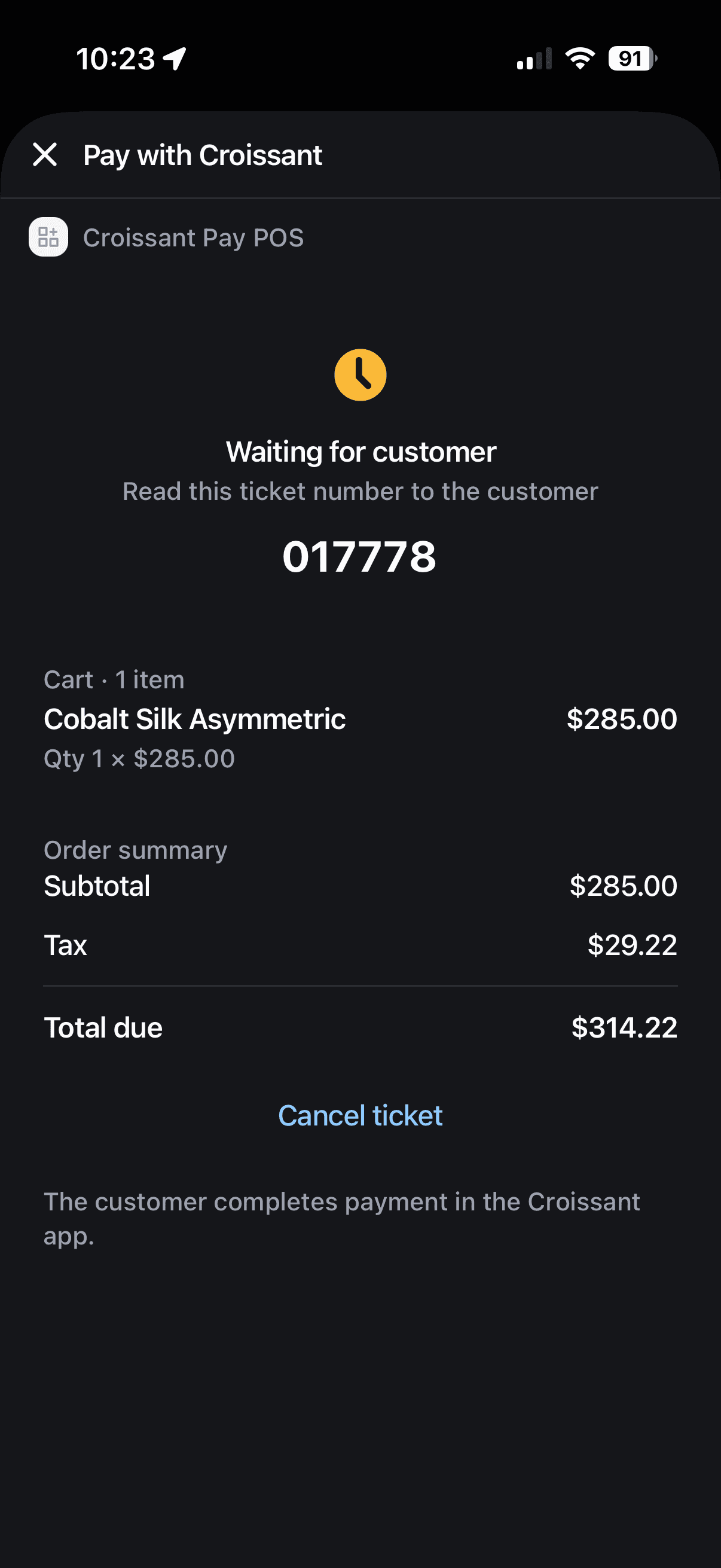
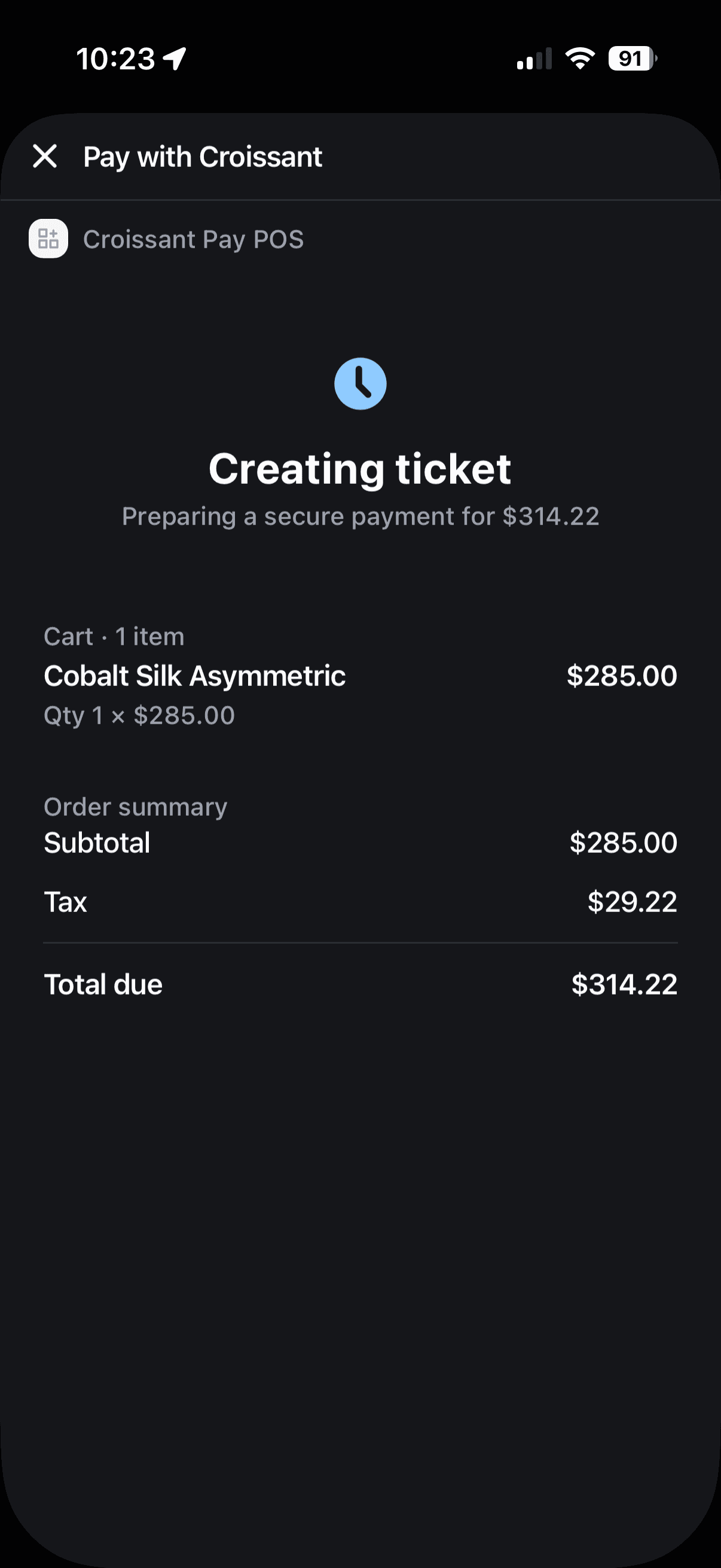
From the Shopify POS smart grid, tap Croissant Pay. The extension shows the cart details and creates a six-digit ticket. Read that number to the customer.
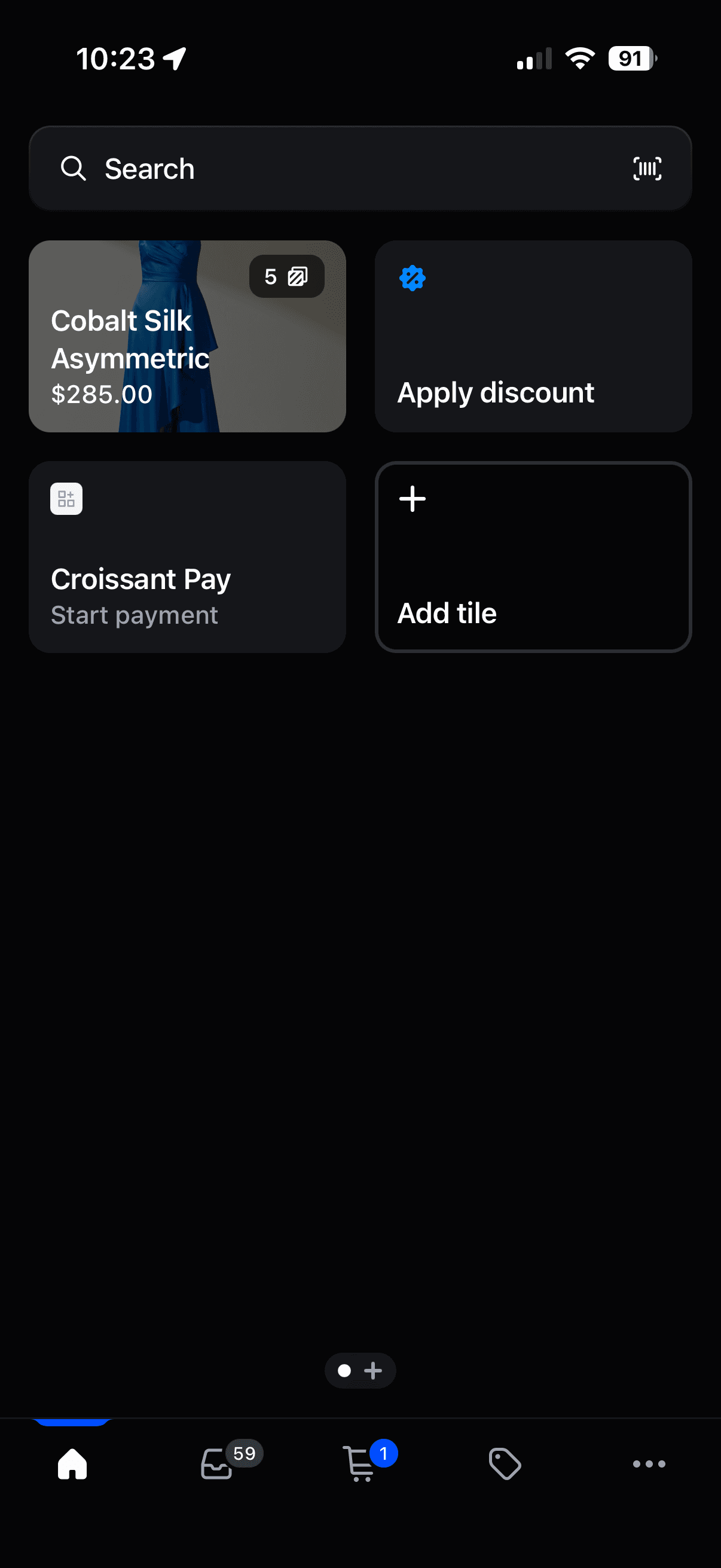
Shopify POS smart grid showing the Croissant Pay tile
Tap Croissant Pay after the cart is final.
Croissant Pay extension creating a payment ticket from the cart
The extension securely creates a ticket for the current cart total.
Croissant Pay extension waiting for a customer with a six-digit ticket
Read the six-digit ticket number to the customer.
Warning
Do not edit the cart after creating the ticket. If the order changes, cancel the ticket before authorization or void it after authorization. Then update the cart and start again.
2Customer

Customer authorizes

Give the customer the six-digit ticket number. They complete the next steps on their own phone.

Enter the ticket

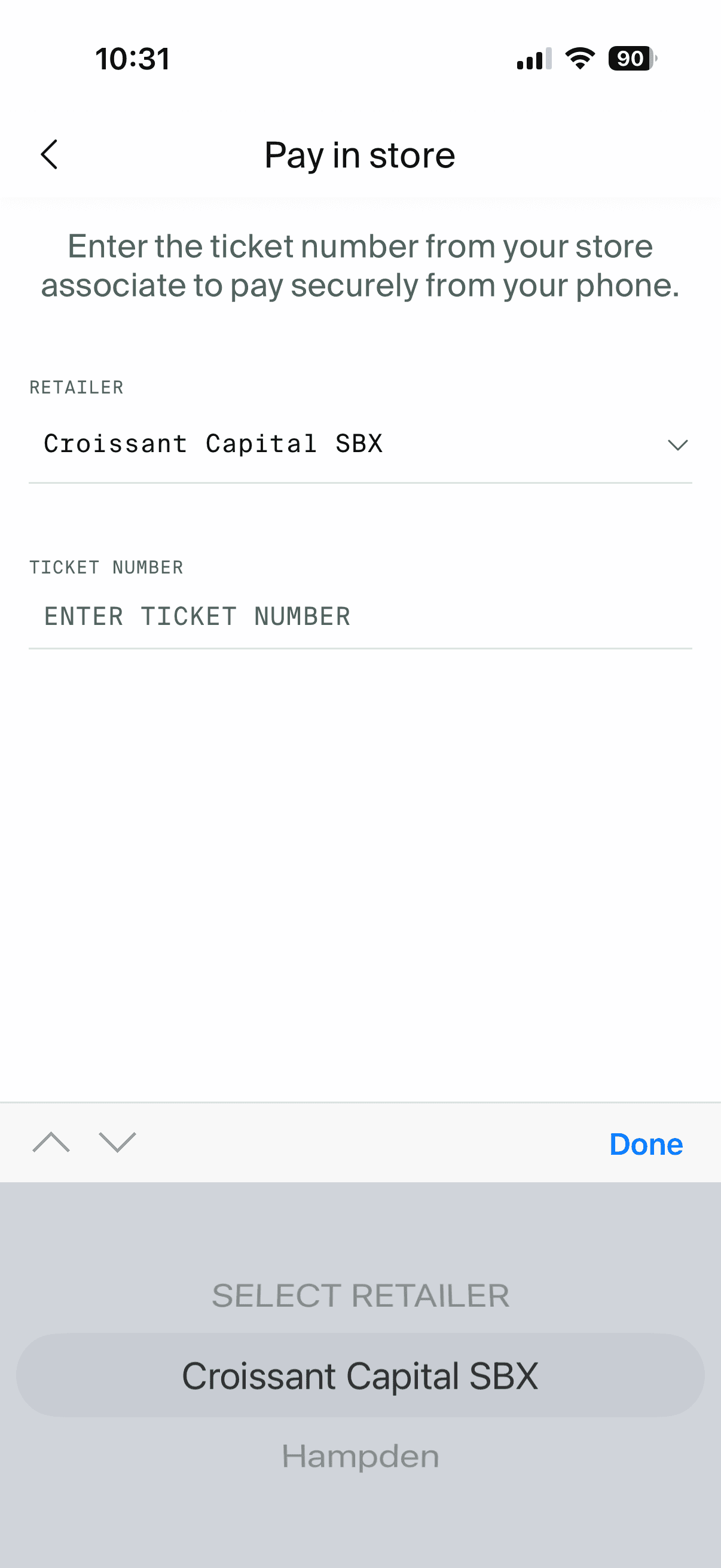
The customer opens Pay in store in the Croissant app, selects your retailer, and enters the ticket number.
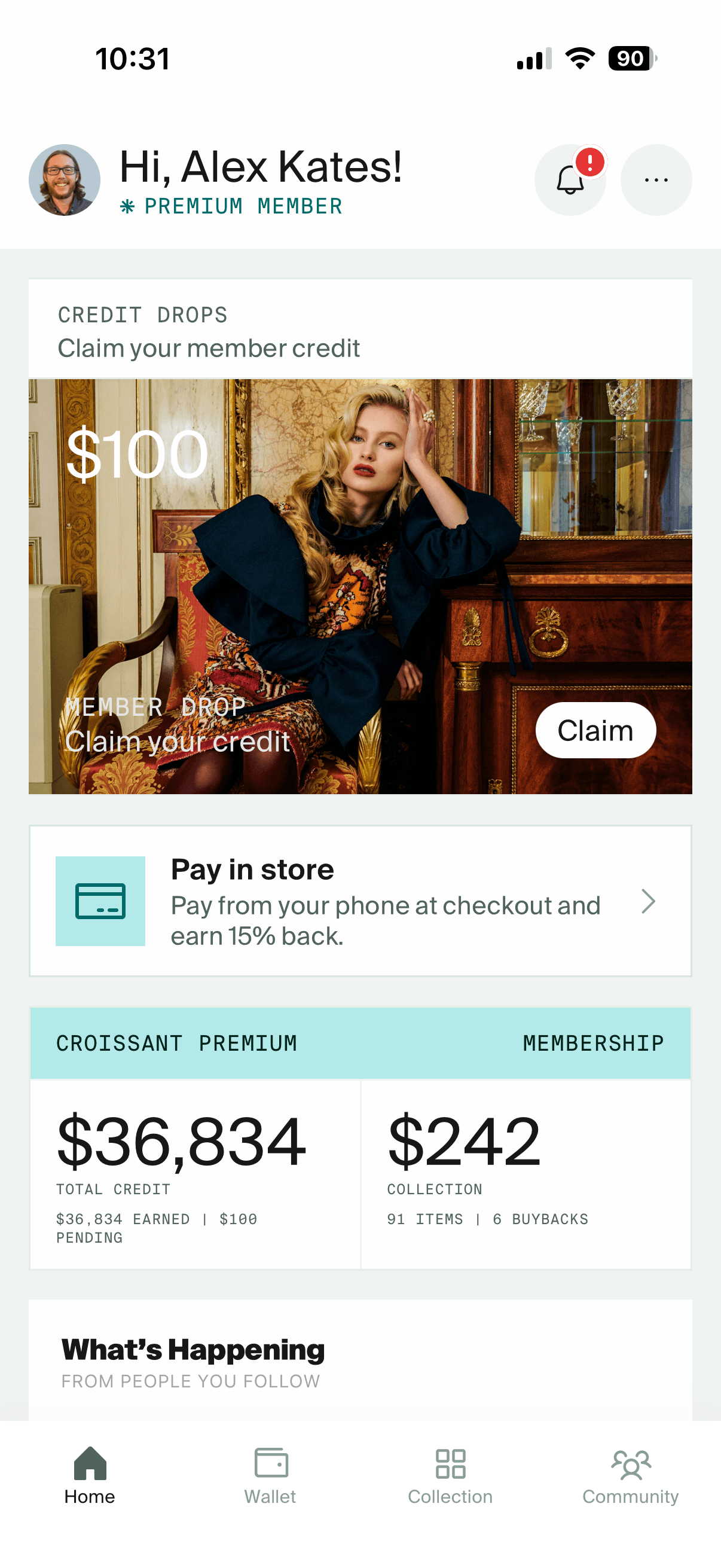
Croissant app home screen showing Pay in store
The customer opens Croissant and taps Pay in store.
Croissant app Pay in store screen with the retailer selector open
They select your store from the retailer list.
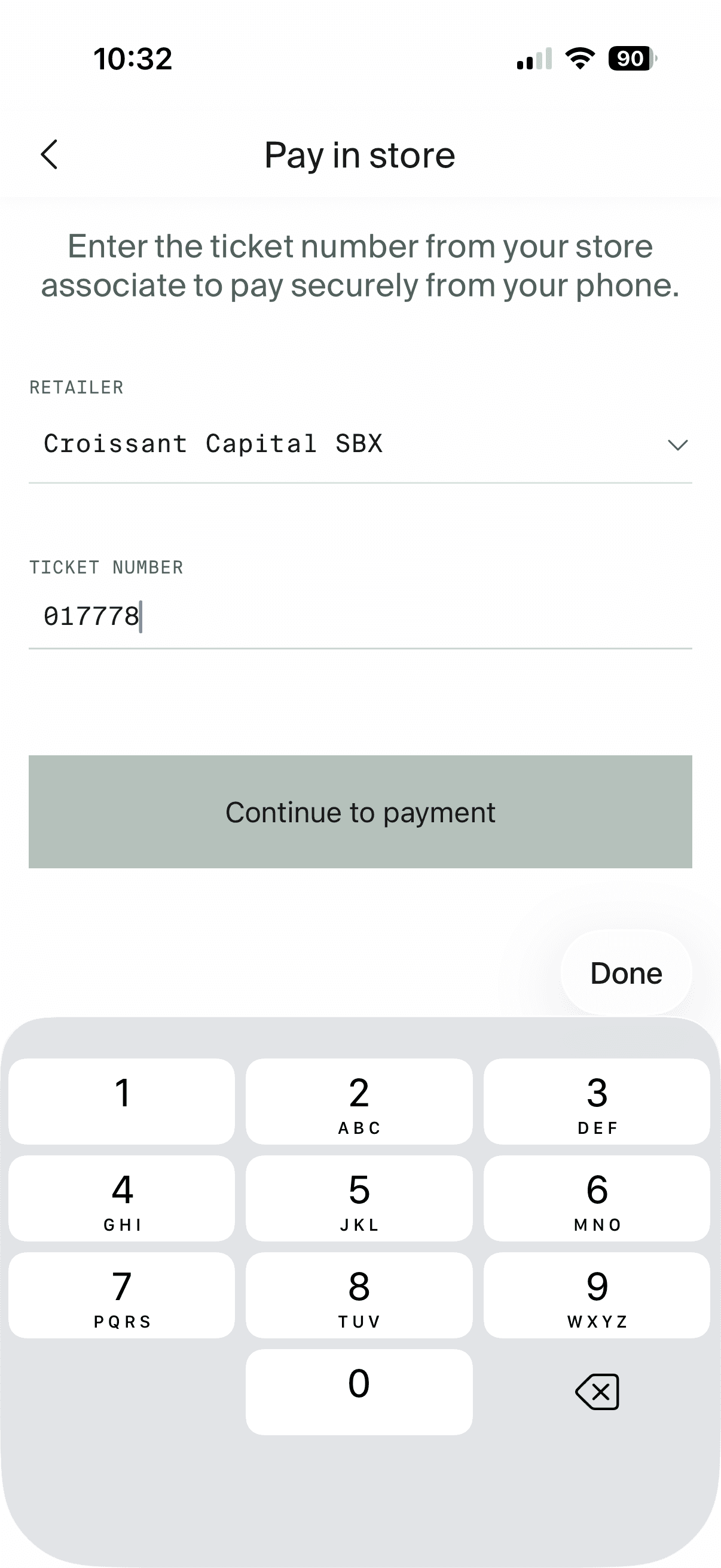
Croissant app Pay in store screen with a retailer and ticket selected
The customer enters the six-digit ticket number.

Choose how to pay

The customer chooses whether to redeem Croissant credit or earn credit back. They review the amount and authorize with Apple Pay or a saved card.
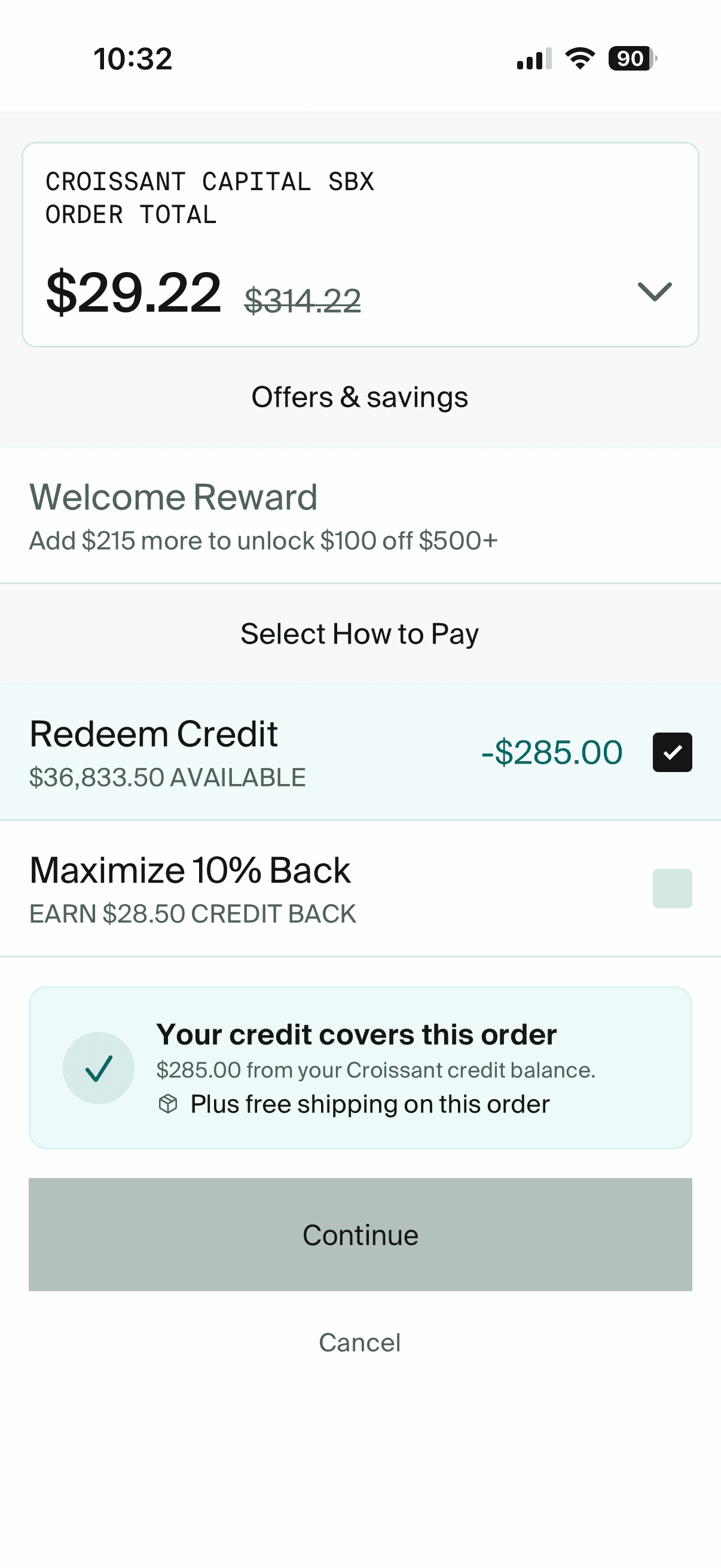
Croissant app showing redeem credit and earn credit back choices
They choose whether to redeem credit or earn credit back.
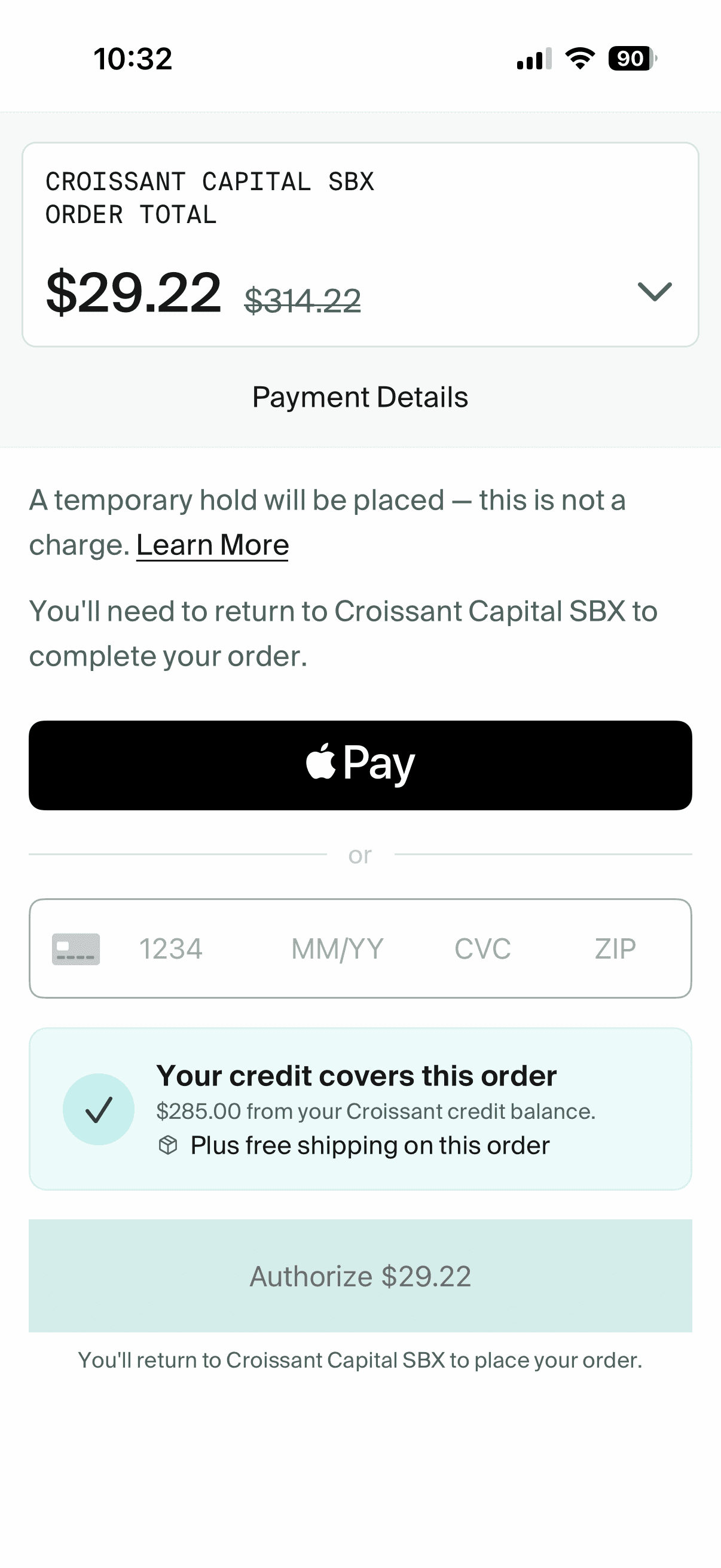
Croissant app payment details screen before authorization
The customer reviews the hold and approves any amount due.
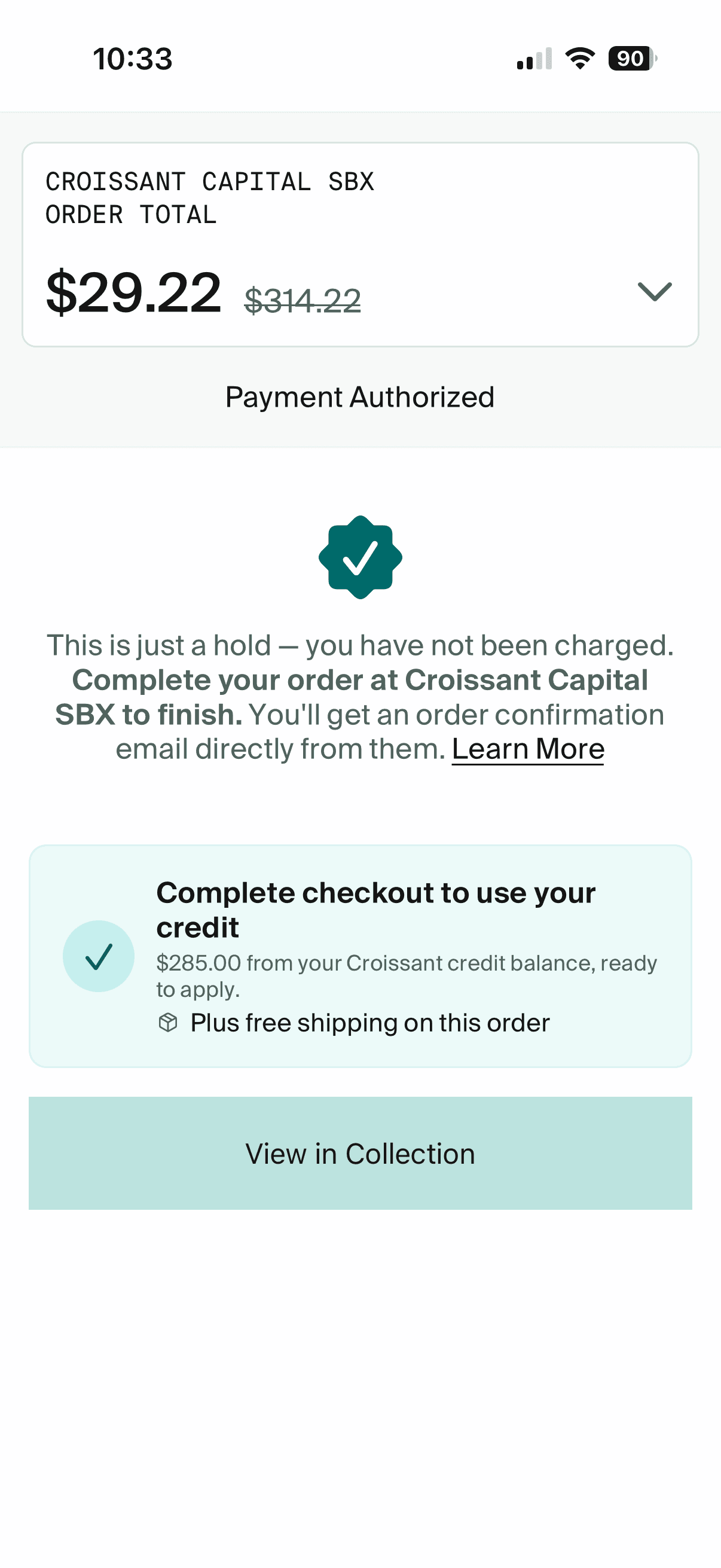
Croissant app showing payment authorized
The customer sees Payment Authorized when the hold succeeds.
Info
Payment authorized means Croissant placed a temporary hold. It is not a completed sale. Wait for the same confirmation in the POS extension before finishing checkout with the Croissant tender.
3Associate

Confirm authorization in POS

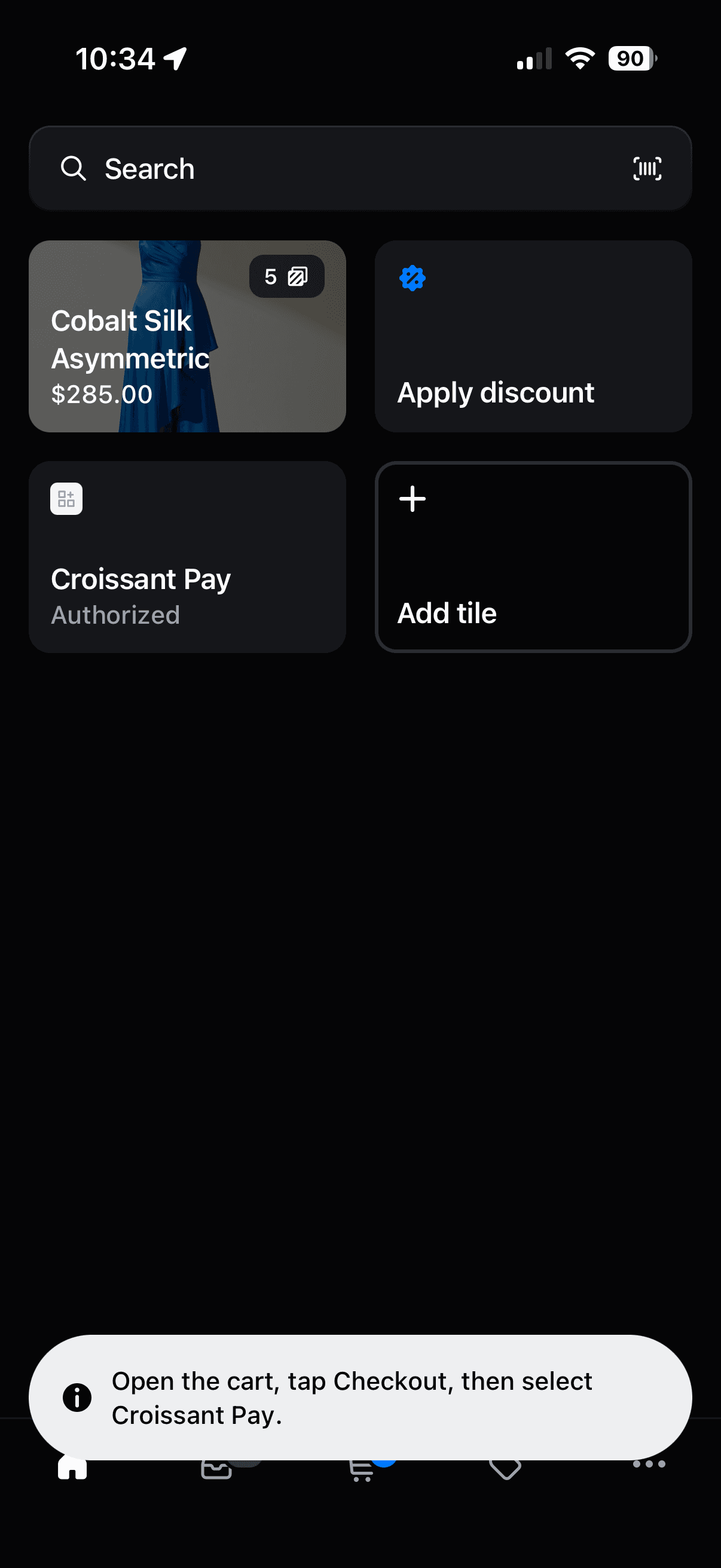
Keep the Croissant Pay extension open until it shows Payment authorized. Tap Return to POS. The smart grid tile changes to Authorized as a reminder that the order is ready to complete.
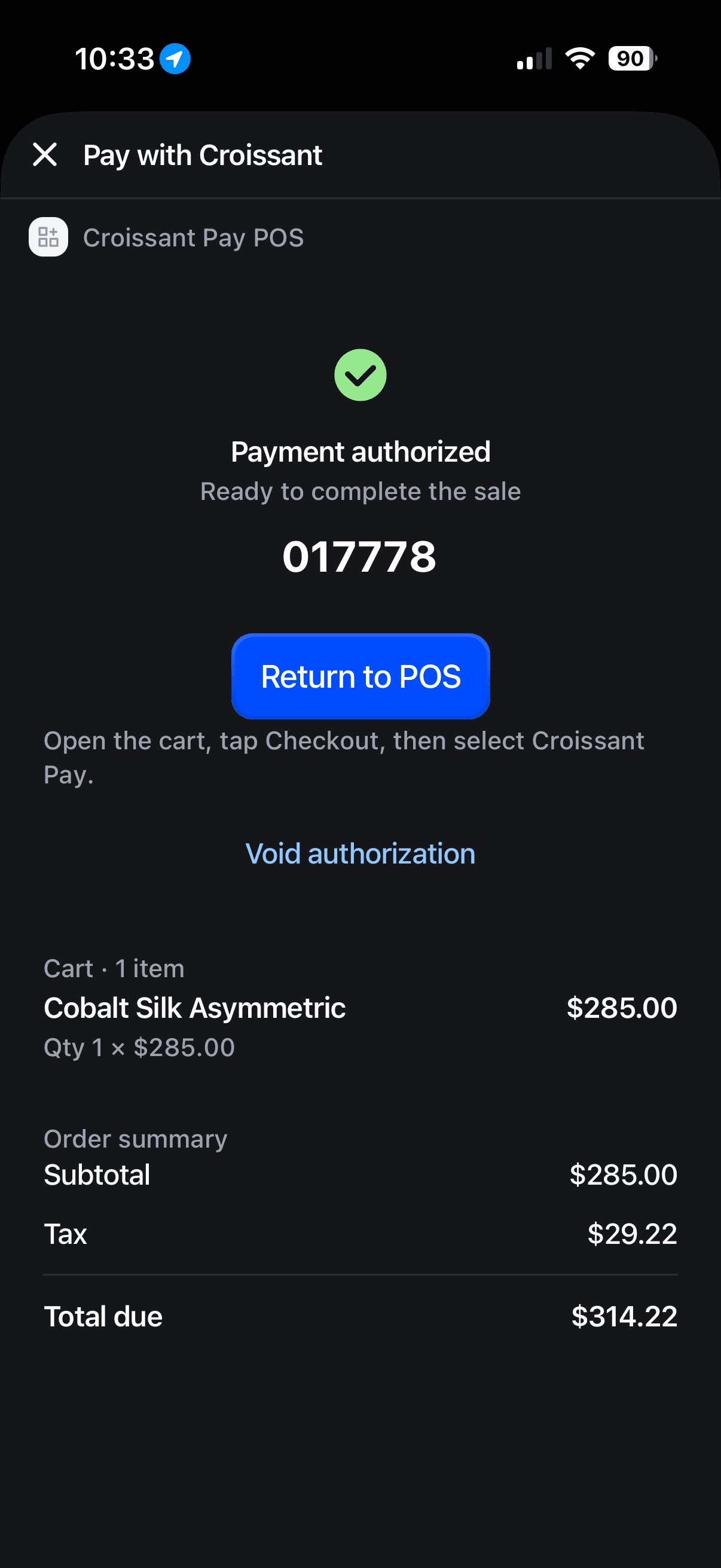
Croissant Pay POS extension showing Payment authorized
Do not continue until the extension confirms the authorization.
Shopify POS smart grid with the Croissant Pay tile marked Authorized
The tile keeps the authorization visible when you return to POS.
Warning
Never select the Croissant tender before the extension says Payment authorized. If the customer cancels or the ticket expires, do not mark the Shopify order paid.
4Associate

Complete checkout

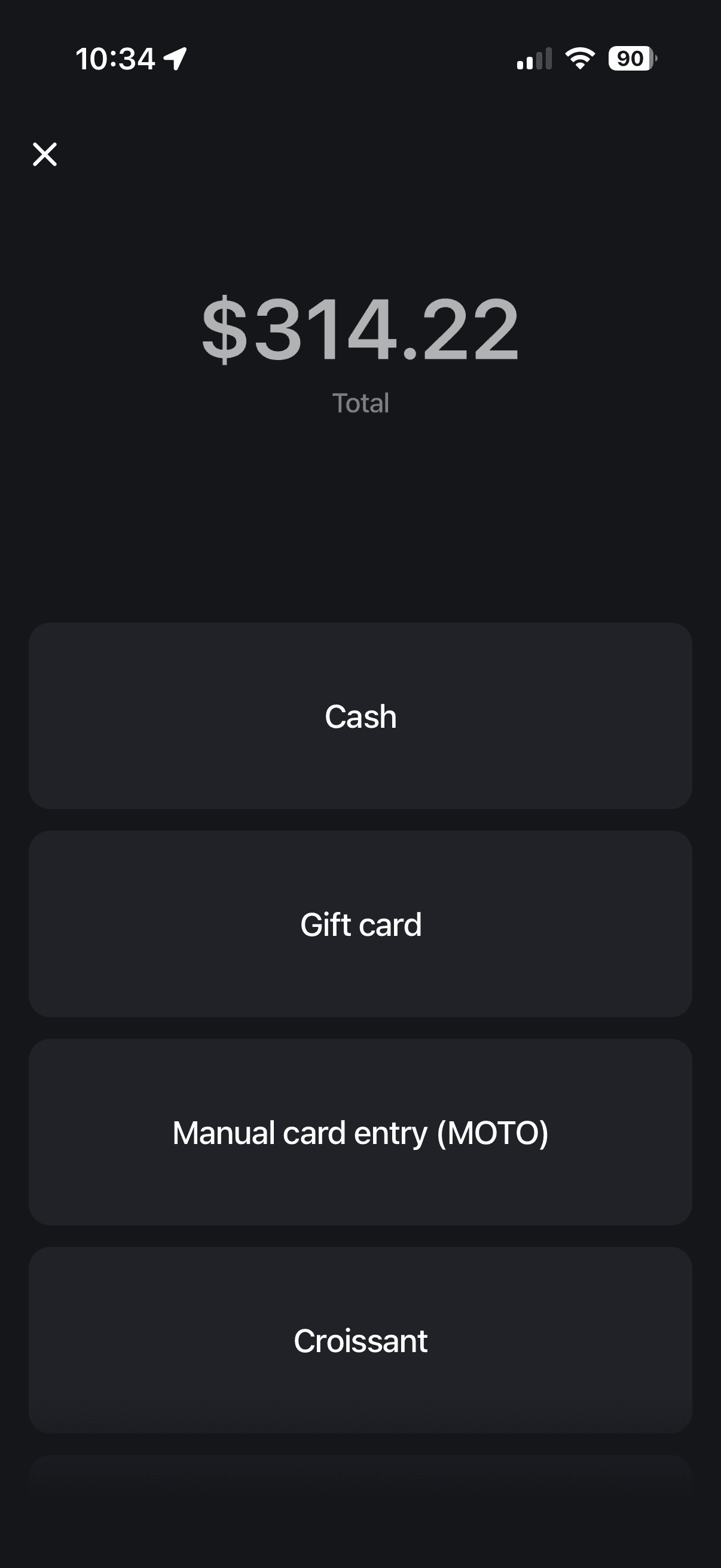
Open the cart and confirm the total has not changed. Tap Checkout, select Croissant, then tap Mark as paid. Shopify completes the sale and offers the normal receipt options.
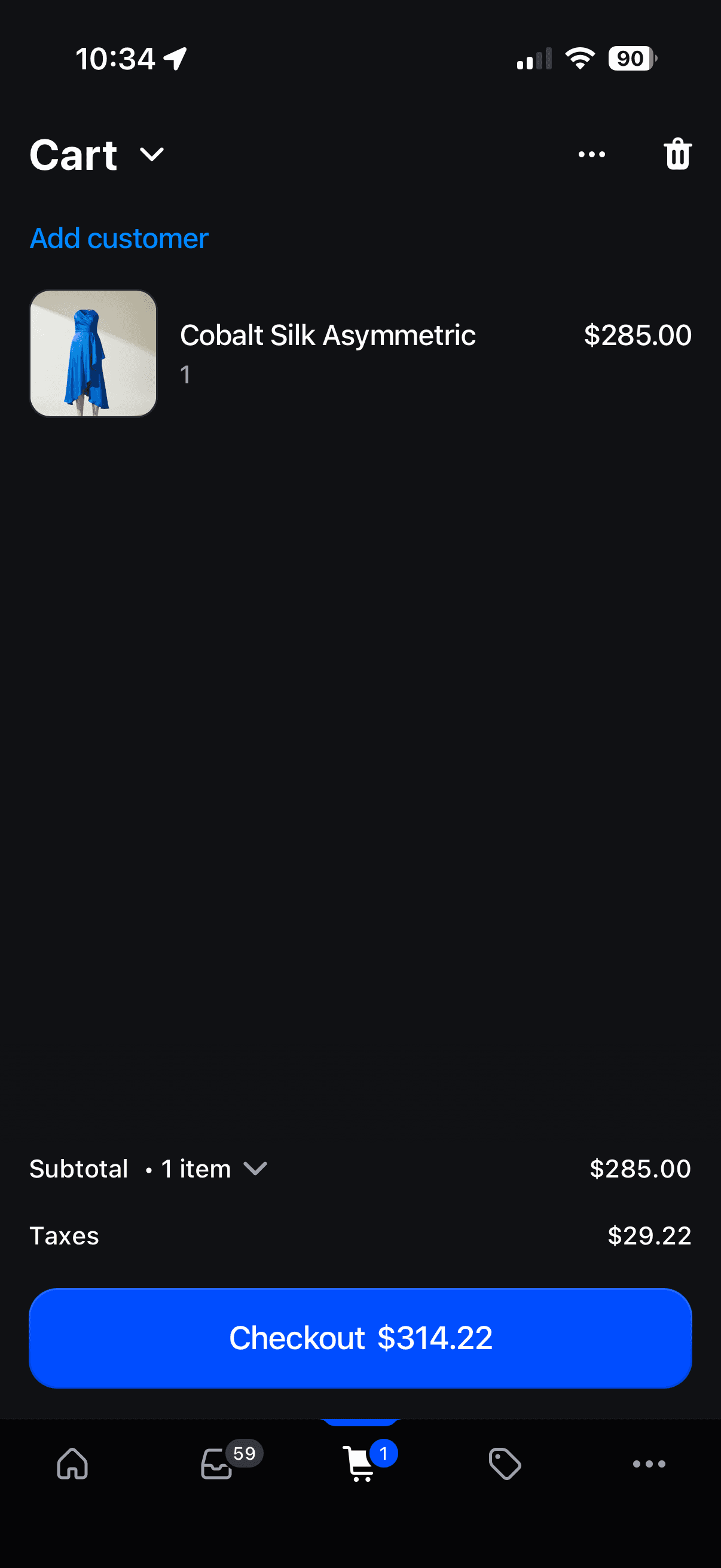
Shopify POS cart with the checkout button
Confirm the cart, then tap Checkout.
Shopify POS payment methods including Croissant
Select Croissant from the payment methods.
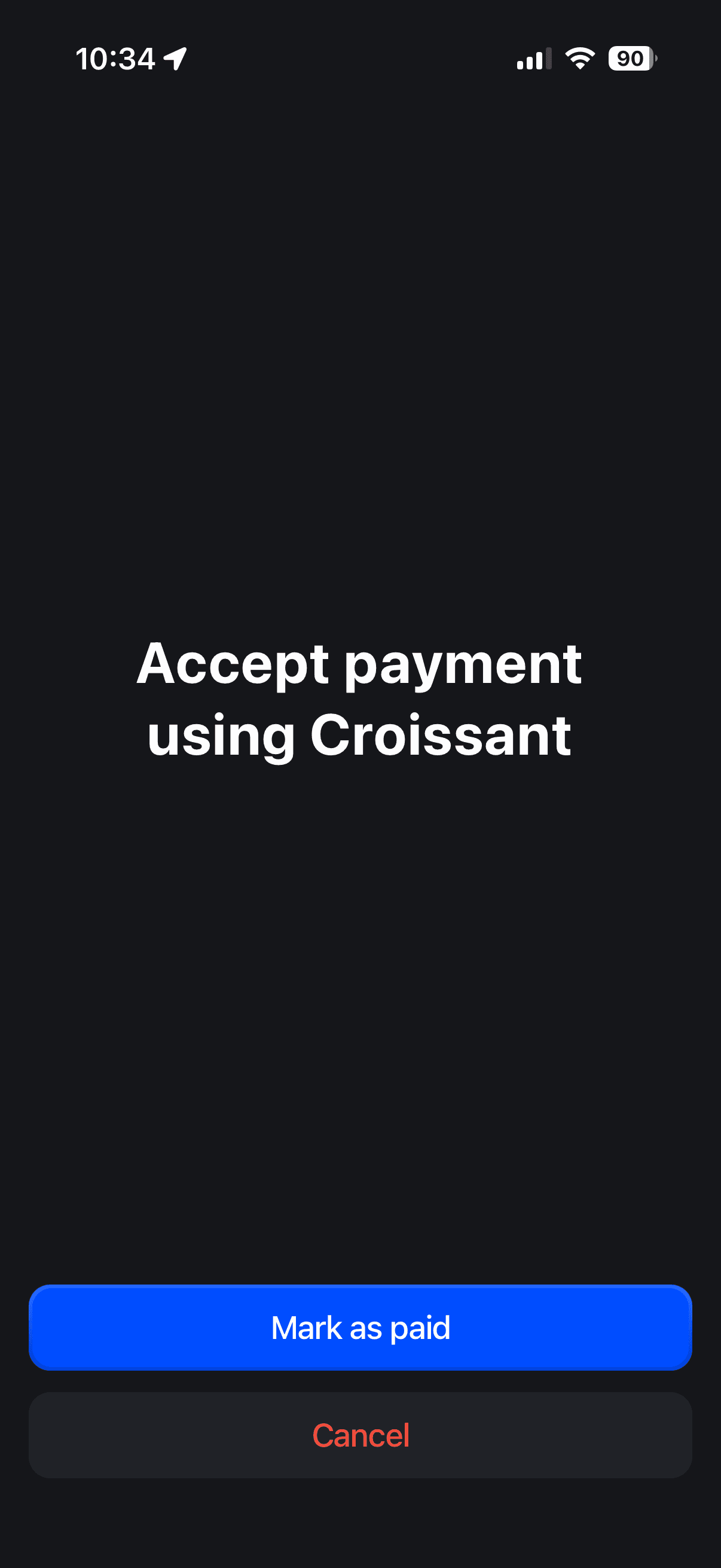
Shopify POS asking the associate to mark a Croissant payment as paid
Mark the payment as paid only after authorization.
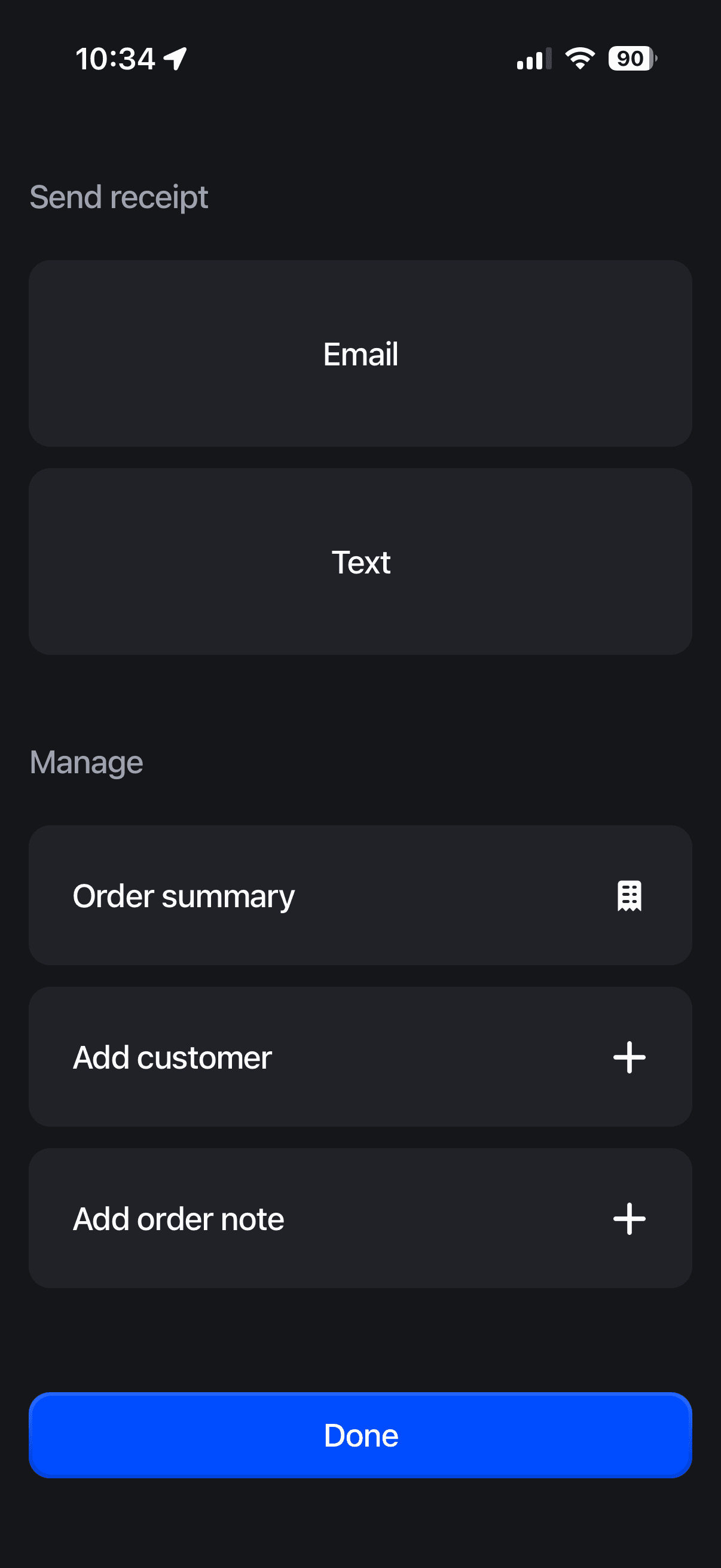
Shopify POS sale-complete screen with receipt options
The Shopify sale is complete. Send a receipt or tap Done.

If something changes

SituationWhat to do
The cart changesCancel the ticket before authorization or void it after authorization. Then update the cart and start again.
The customer does not authorizeCancel the ticket or use another payment method.
The extension says authorized, but the tile does notOpen Croissant Pay again and verify the ticket before continuing.
The Croissant tender is missingStop the sale and ask a manager to finish the POS setup.

What Shopify records

Managers can find completed Croissant Pay sales in Shopify Admin by the Croissant tag. Under Additional details, _croissant_pay_ticket_number preserves the ticket number for support and reconciliation.
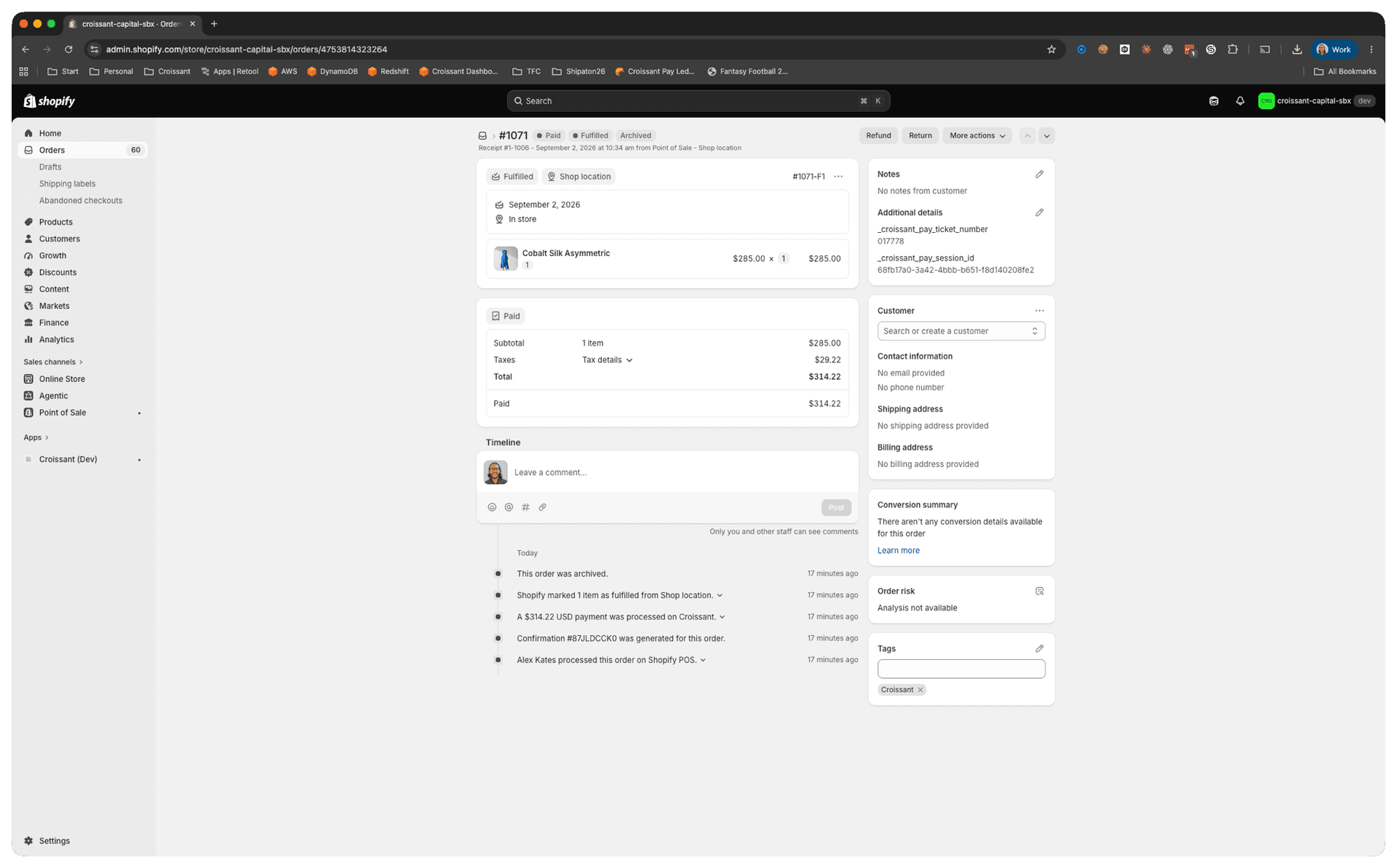
Completed Shopify order showing the Croissant tag and Croissant Pay ticket number under Additional details
Use the Croissant tag to find these sales and the saved ticket number to match an order to its Croissant Pay authorization.
Manager guideSet up Croissant Pay in Shopify POS